
Workspace Overview
Tour the VibeCNC interface: top menu bar, viewport mode switcher, left design rail, right CAM toolpaths drawer, and live status bar.
VibeCNC organizes its workspace so your eyes stay on the part you are designing. Drawing and modeling live on the left, machining and simulation live on the right, and the center stays dedicated to your 2D and 3D views.
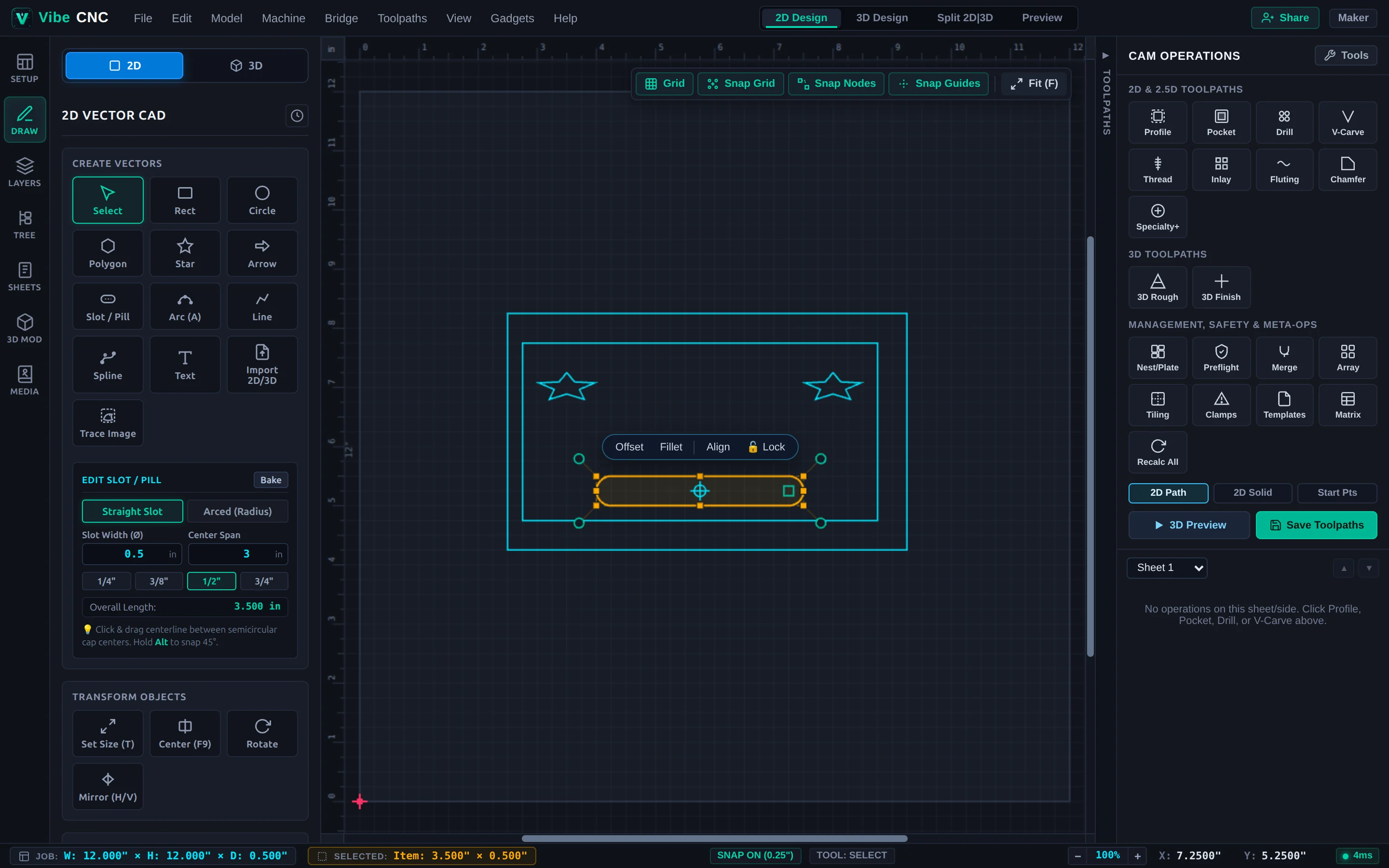
Top Menu Bar & View Switcher
Along the top edge you have standard pull-down menus (File, Edit, Model, Machine, Bridge, Toolpaths, View, Gadgets, and Help). In the center-right of the header are the four primary workspace modes:
- 2D Design: Full-screen 2D vector canvas with rulers, grid, snapping, and 2D toolpath overlays.
- 3D Design: Full-screen Three.js 3D viewport for inspecting reliefs, meshes, and stock height.
- Split 2D|3D: Side-by-side dual view so you can tweak a 2D vector on the left and watch the 3D relief or toolpath update immediately on the right.
- Preview: Dedicated 3D machining simulation view with material removal playback and cycle-time readouts.
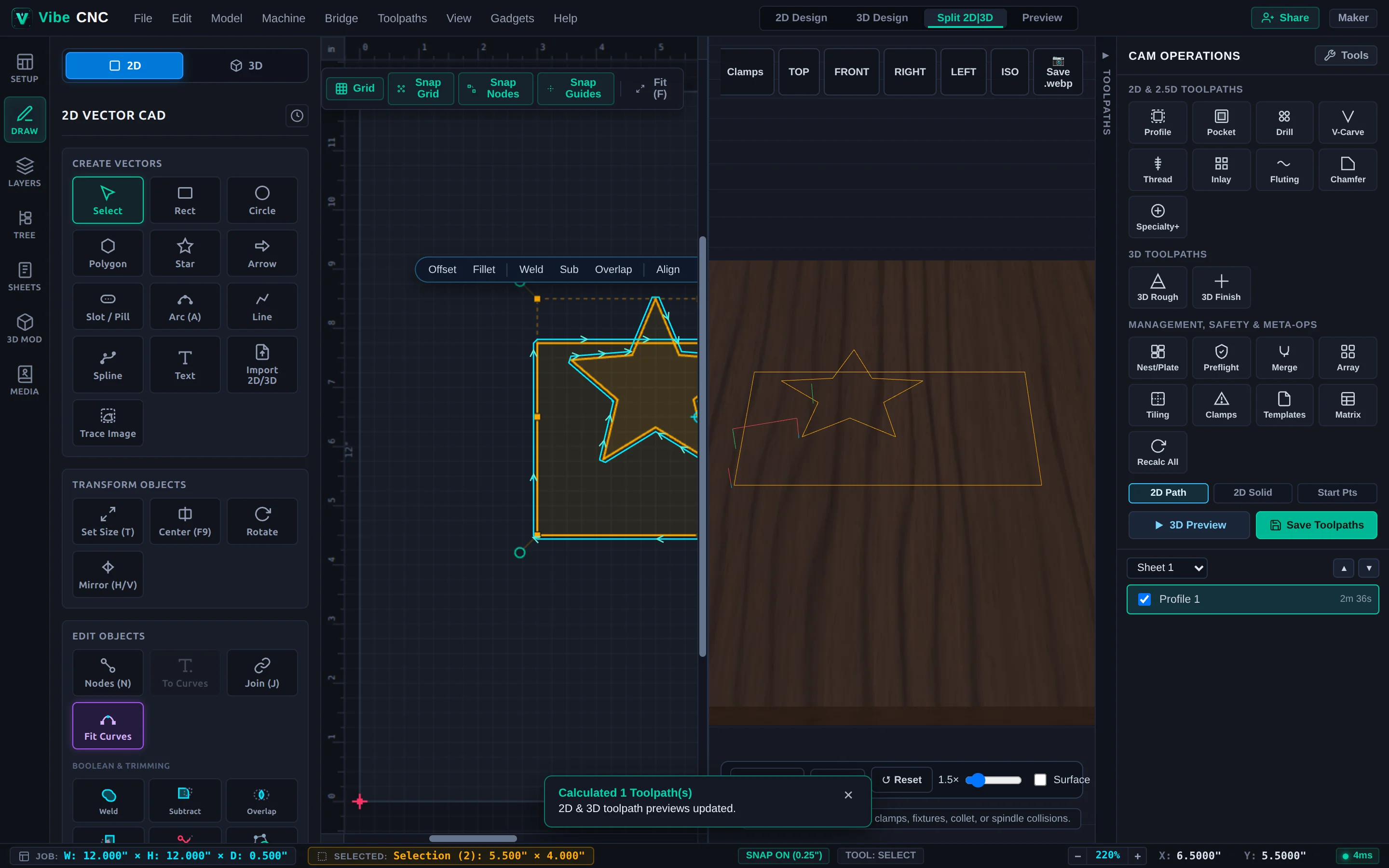
Left Design Rail & Drawer
The vertical icon strip on the far left switches the left drawer between seven focused panels:
- Setup: Job dimensions, Z-zero, XY datum, and material swatch selection.
- Draw: 2D shape creation, text, bitmap tracing, transforms, boolean editing, fillets, and layout tools.
- Layers: Organize vectors by color, lock finished geometry, and associate layers with toolpath templates.
- Tree: Parametric Feature History Tree, non-destructive Live Modifiers, and 2D Sketch Constraints.
- Sheets: Manage multiple material sheets in a single project.
- 3D Mod: 3D relief sculpting, sweeps, extrusions, and component tree controls.
- Media: Built-in vectors, heightmaps, 3D clipart, and shared community artwork.
Right CAM Operations Drawer & VibeCNC Assistant
Press F12 at any time to toggle the Right Drawer. The top half launches 2D, 3D, and specialty toolpath forms plus production tools (Nest/Plate, Preflight, Merge, Array, Tiling, Clamps, Templates, and Matrix). The bottom half holds your Toolpath Tree, where you reorder cuts, toggle visibility, inspect estimated runtimes, and click Save Toolpaths.
To the right of the view switcher in the top header sits the Assistant button (Ctrl+Shift+K), which opens the docked VibeCNC Assistant agentic chat panel for asking CNC questions and building 2D and 3D geometry and toolpaths with natural language.
Bottom Status Bar
The bottom bar displays live telemetry at a glance: your current job size (W x H x D), the dimensions of the active selection, grid snap status, active tool, zoom controls, and exact cursor X / Y coordinates.