
VibeCNC Assistant (Agentic Chat)
Ask CNC questions, look up material-calibrated speeds and feeds, build 2D vector designs and CAM toolpaths, and sculpt 3D reliefs using natural language.
VibeCNC Assistant is an interactive, workspace-aware CAD/CAM agent built directly into the VibeCNC studio. Instead of hunting through menus for a specific dialog or doing chip-load math on a notepad, you can ask shop questions or describe the 2D vectors, 3D reliefs, and CAM toolpaths you want and watch VibeCNC build them live on your canvas.
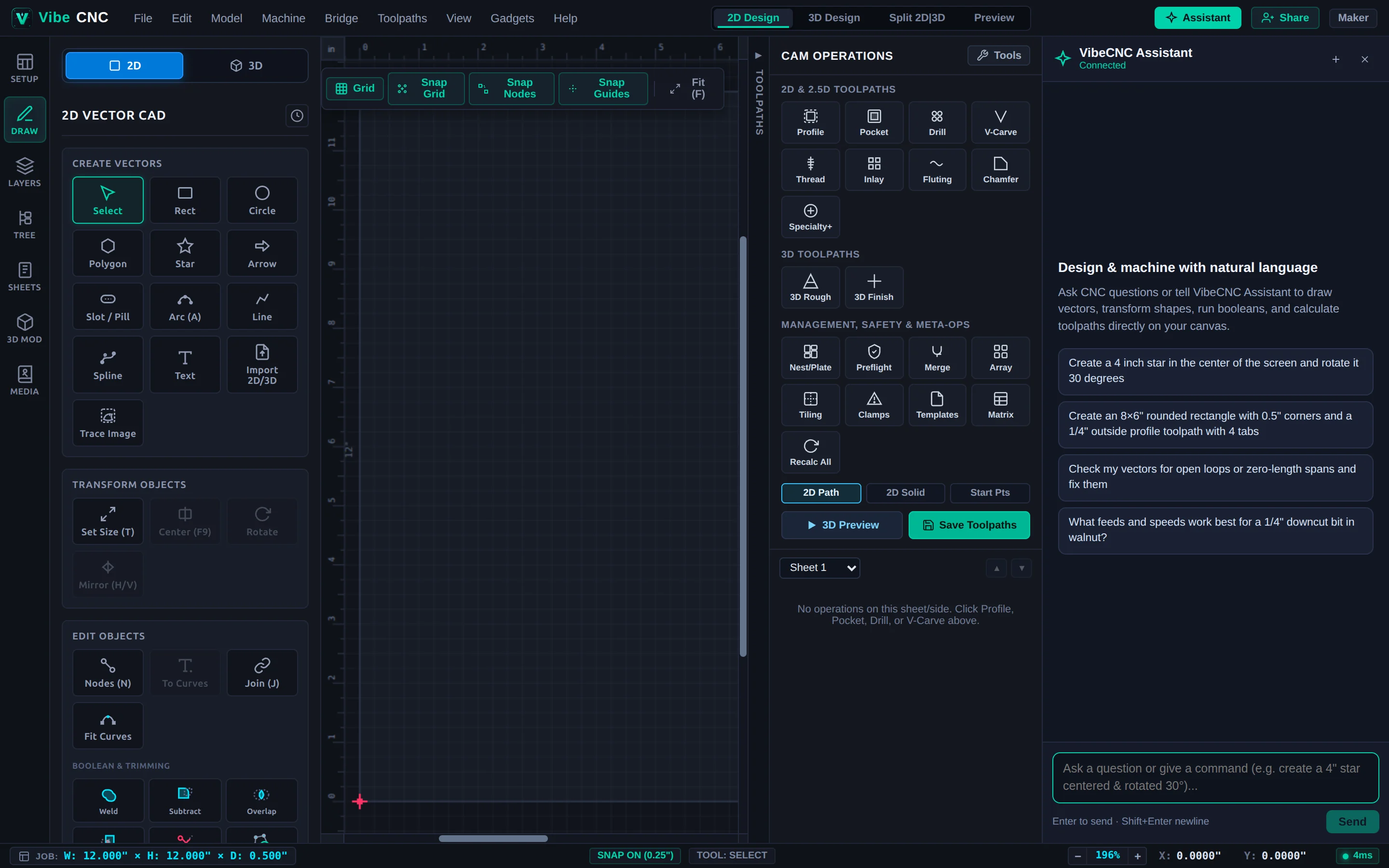
Opening VibeCNC Assistant & Panel Controls
Click the teal Assistant button in the top-right header (next to Share) or press Ctrl+Shift+K at any time to toggle the docked chat panel.
- Connection Indicator: Displays
Connectedin green when linked to the live VibeCNC workspace server. - New Conversation (+): Clears the chat thread and starts a fresh session without disturbing your canvas geometry or toolpaths.
- Starter Prompt Chips: On an empty thread, click any one-click starter chip to try common 2D drawing, vector validation, or feeds-and-speeds requests immediately.
- Composer Bar: Press Enter to send, Shift+Enter to insert a line break, or click Stop to cancel a multi-step turn mid-flight. The status line also displays your remaining daily turns.
Asking CNC & Workflow Questions
Because VibeCNC Assistant reads a live snapshot of your active project (units, stock dimensions, datum, layers, selected vectors, 3D models, toolpaths, and your Tool Database), its answers match the exact job sitting on your screen.
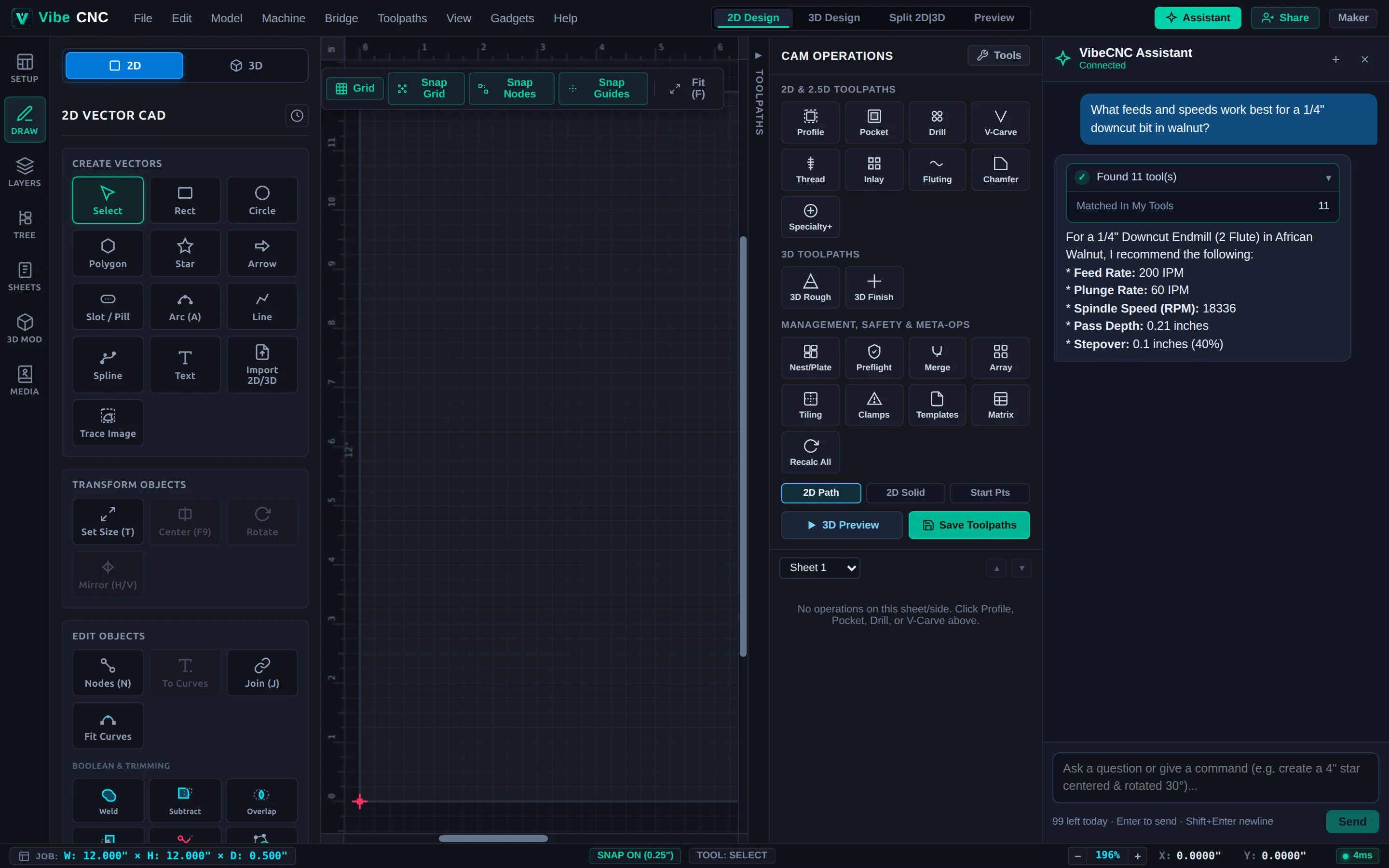
| Question Category | Example Prompts to Try |
|---|---|
| Feeds, Speeds & Tooling | "What feeds and speeds work best for a 1/4" downcut bit in walnut?" or "Which bit in my library should I use for 3D finishing a detailed medallion?" |
| Workholding & Strategy | "Should I set Z-zero on the material surface or machine bed for a 3/4" Baltic birch cabinet cutout?" |
| Workspace Inspection | "How big is my currently selected vector?" or "List all built-in parametric gadgets I can run." |
| Vector Health & Cleanup | "Check my vectors for open loops or zero-length spans and fix them." |
Building 2D Designs & CAM Toolpaths
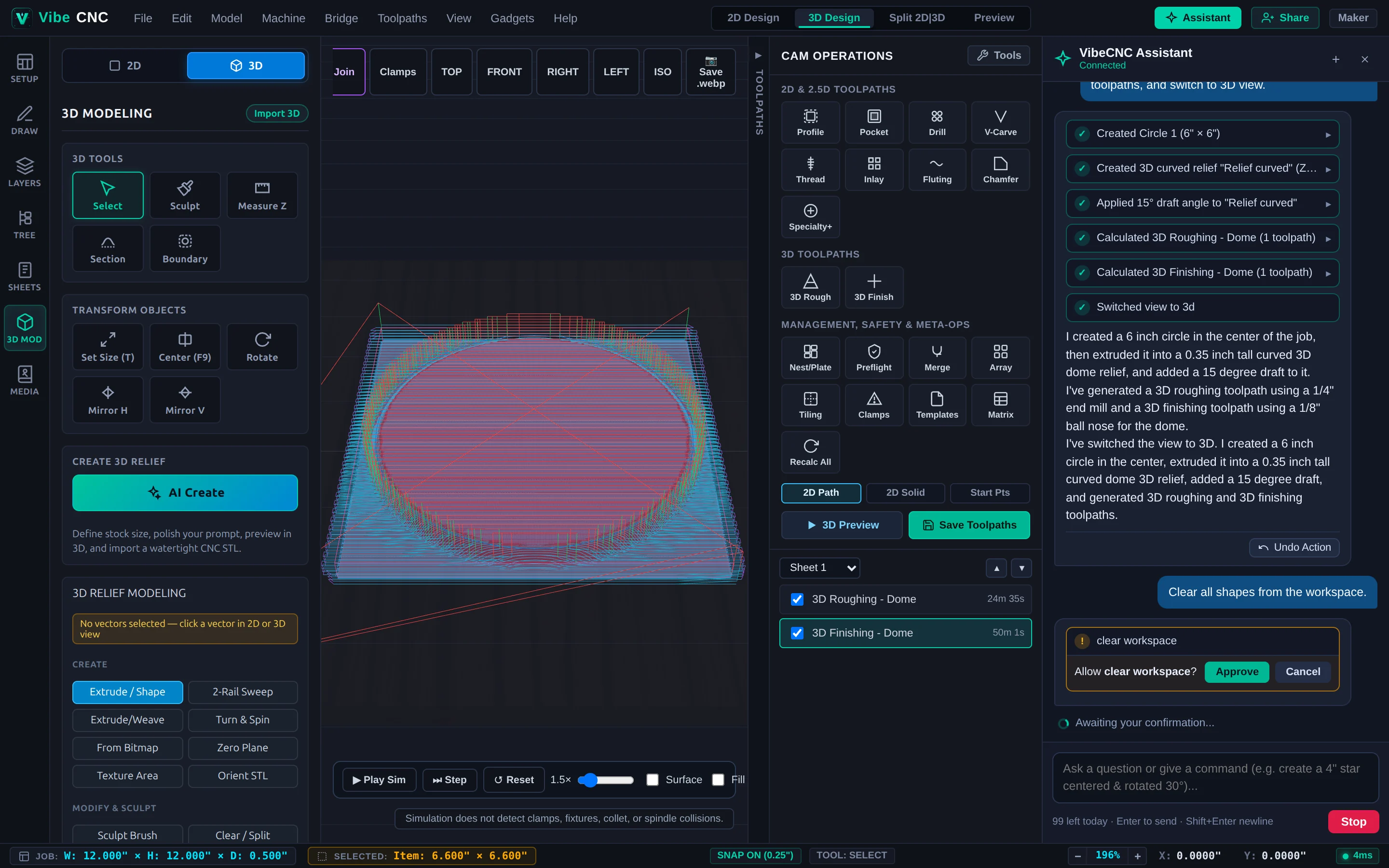
You can chain multiple 2D CAD and CAM operations in a single message. VibeCNC Assistant executes real workspace actions step by step and renders a live Tool Execution Chip for each step. Click any expandable chip (marked with ▸) to inspect exact dimensions, center coordinates, tool selection, cut depth, and estimated runtime.
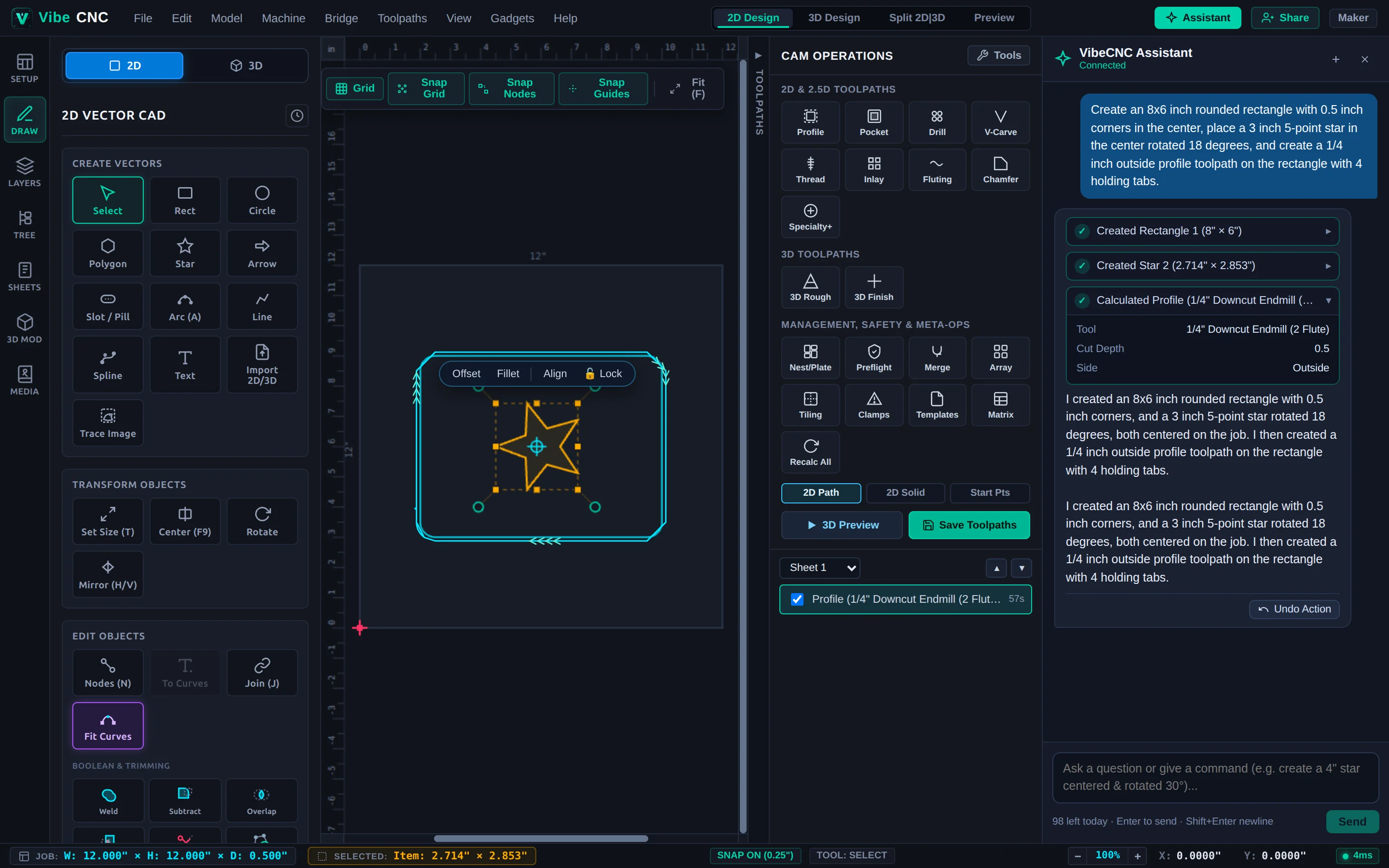
Supported 2D operations include:
- 2D Primitives & Text: Stars, rectangles (with optional corner radius), circles, ellipses, polygons, arrows, slots, polylines, splines, arcs, parametric vector text (with optional convert-to-curves), and snapping guidelines.
- Transforms & Arrays: Move, move to exact coordinates, rotate, scale, set exact size, flip horizontally or vertically, align to job center or selection edges, linear/grid arrays, circular arrays, and delete.
- Vector Editing & Cleanup: Weld, subtract, intersect, trim, join open vectors, curve fitting (arcs, beziers, lines), and automatic vector validation and repair.
- Project Organization & Gadgets: Update Job Setup (width, height, thickness, units, XY datum, Z-zero), create or recolor layers, group/ungroup shapes, manage Document Variables, and run built-in parametric Gadgets.
- 2D CAM Toolpaths: Calculate real WASM-computed Profile (outside, inside, on-vector, climb/conventional, ramps, holding tabs), Pocket / Adaptive, Drill, and V-Carve toolpaths, plus recalculate all, check clamp collisions, and reorder or toggle visibility.
| 2D Task | Sample Natural-Language Prompt |
|---|---|
| Framed Sign + Cutout | "Create an 8x6 inch rounded rectangle with 0.5 inch corners in the center, place a 3 inch 5-point star in the center rotated 18 degrees, and create a 1/4 inch outside profile toolpath on the rectangle with 4 holding tabs." |
| Text + V-Carve | "Add centered text reading 'WORKSHOP' at 1.4 inches tall and create a 60-degree V-Carve toolpath on it." |
| Grid Array of Holes | "Draw a 0.25 inch circle at (2, 2), duplicate it into a 4x3 grid spaced 1.5 inches apart, and create a 0.5 inch deep drill toolpath." |
| Job Setup + Variables | "Change job setup to 24 x 12 x 0.75 inches with bottom-left datum and create a document variable SlotWidth set to 0.735." |
Sculpting 3D Reliefs & 3D Machining
VibeCNC Assistant can also build and sculpt 3D relief components directly from 2D vectors and calculate real 3D Roughing and 3D Finishing toolpaths in one continuous workflow.
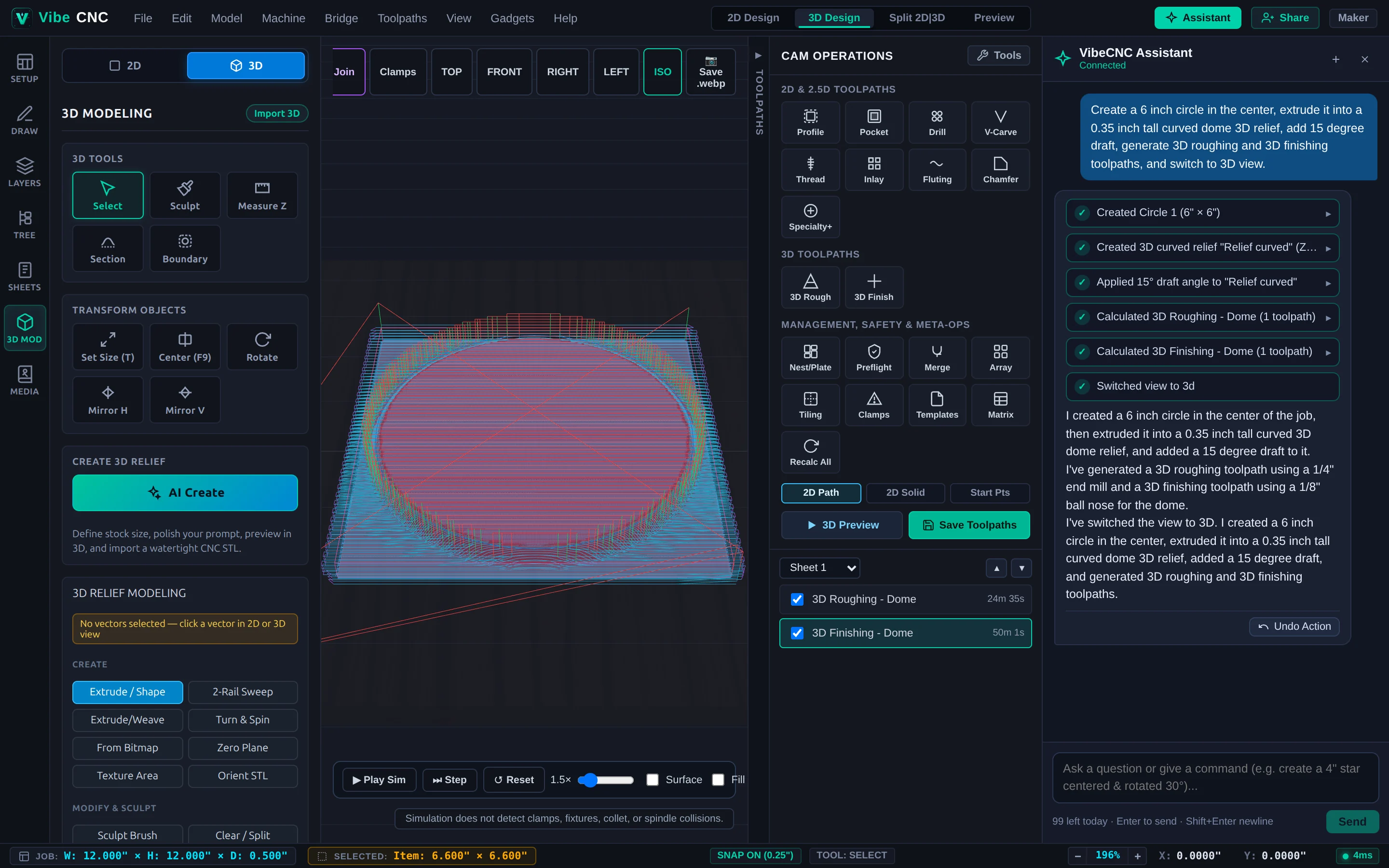
Supported 3D modeling and machining operations include:
- 3D Relief Creation: Extrude closed 2D vectors with Curved (Dome), Angular (Bevel), Flat, or Smooth profiles, exact target Z heights, base plinth heights, and combine modes (
add,subtract,mergeHigh,mergeLow). Also supports adding a Zero Plane, procedural 3D Texture Areas (scallop,weave,gouge,pebble,wave), and Turn & Spin revolves. - 3D Relief Modification: Scale Z height (exact height or factor), smooth with custom strength and passes, add draft angles for clean tool clearance, apply positive or negative 3D surface offsets, emboss with detail boost, center or move on the job, toggle visibility, or bake visible components into a single relief.
- 3D CAM Toolpaths: Generate 3D Roughing (Z-Level or 3D Raster with machining allowance and end mill selection) and 3D Finishing (Raster or Offset with ball nose or tapered ball nose bits, custom stepover percentage, and model or vector boundaries).
- Viewport Control: Ask the Assistant to switch between 2D Design, 3D Design, Split 2D|3D, or Preview, zoom to fit, or open dialogs such as the Tool Database or 3D Generator.
| 3D Task | Sample Natural-Language Prompt |
|---|---|
| Domed Medallion + 3D CAM | "Create a 6 inch circle in the center, extrude it into a 0.35 inch tall curved dome 3D relief, add 15 degree draft, generate 3D roughing and 3D finishing toolpaths, and switch to 3D view." |
| Sculpt & Refine Relief | "Smooth the active 3D relief with 2 iterations at 0.5 strength, then scale its exact Z height to 0.40 inches." |
| Textured Panel Background | "Add a zero plane, then fill the selected rectangle with a 3D scallop texture 0.12 inches deep rotated 30 degrees." |
Safety Guardrails, Confirmation Gates & Prompting Tips
VibeCNC Assistant is designed so you stay in full control of your project file at every step:
- Explicit Confirmation for Destructive Actions: High-impact commands such as clearing all shapes, 3D models, or toolpaths pause at an amber confirmation bar inside the chat. Nothing is erased until you click Approve (click Cancel to abort safely).
- One-Click Undo Action: Every turn that modifies your canvas displays an inline Undo Action button right beneath the reply, integrated directly with VibeCNC's standard Ctrl+Z undo stack.
- Automatic Unit Conversion: Mentioning "100mm circle" inside an inch job (or "4 inch star" inside a millimeter job) automatically converts dimensions into your active job units.
Include exact dimensions (e.g., 8x6 inches, 0.35" tall), placement intent (in the center or exact (X, Y) coordinates), and the cutter or material you plan to run. For multi-part jobs, build the geometry and toolpaths in one prompt, then follow up with short refinements like "make the star 3.5 inches wide" or "change stepover to 10% and recalculate."