
Text Tool, Fonts & Text on a Curve
Set crisp CNC-ready lettering using 1,959 offline Google Fonts, custom TTF/OTF/VFONT uploads, kerning controls, Text on a Curve, and Convert to Curves.
Lettering is one of the most common jobs on any CNC router, from shop signs and plaques to engraved serial plates. VibeCNC includes an offline catalog of 1,959 Google Fonts alongside support for your own TrueType, OpenType, and single-line engraving fonts.
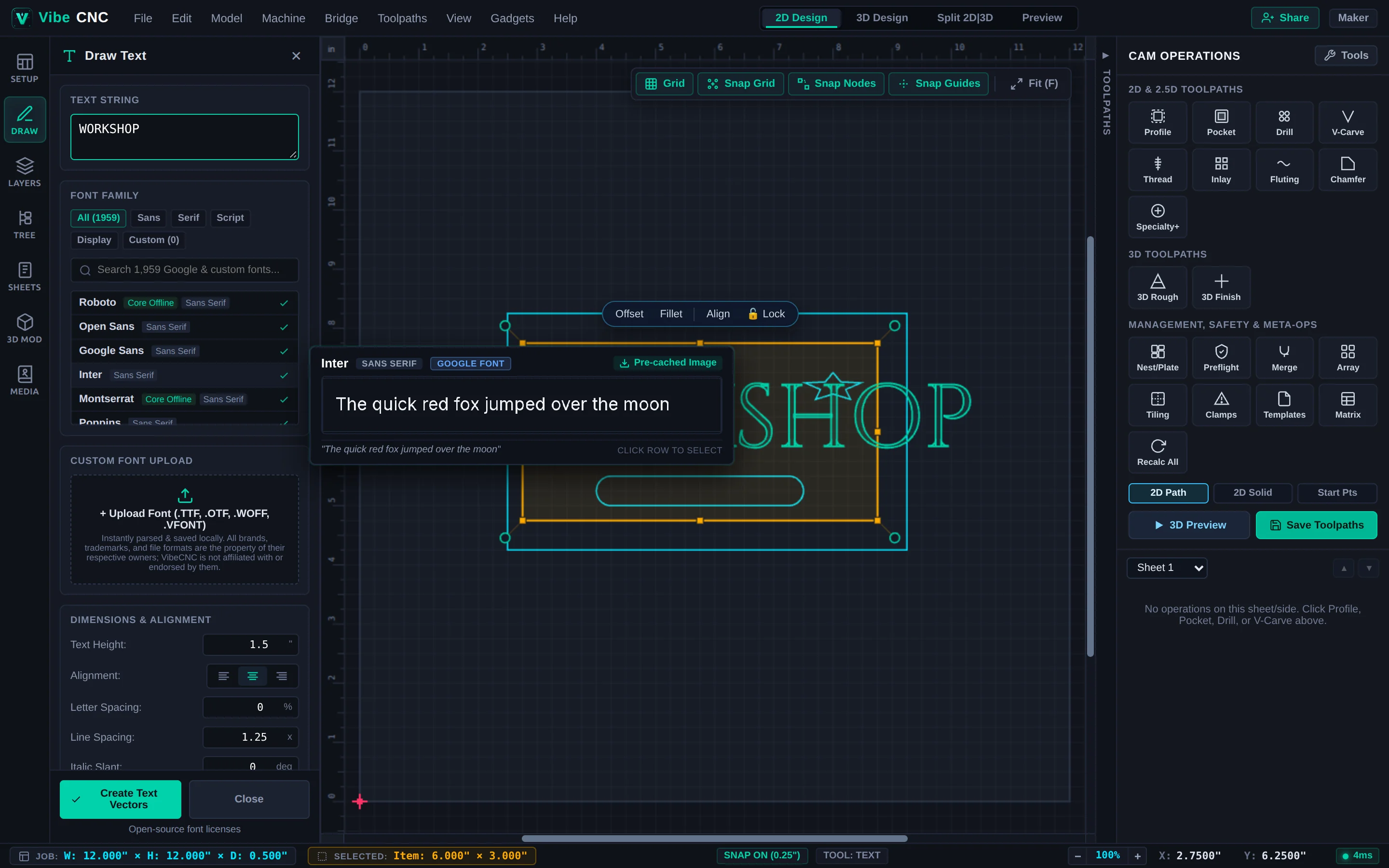
Creating and Re-Editing Parametric Text
- Click Text in the Left Drawer (Create Vectors section).
- Type single or multi-line text into the text editor box.
- Search the font catalog by name or filter by category (Sans, Serif, Script, Display, Monospace). Hover any font name to see a crisp sample preview.
- Set Text Height in inches or millimeters, choose Left/Center/Right alignment, and fine-tune letter tracking, line spacing, italic slant, or rotation angle (-180 to +180 degrees).
- Click on the canvas to set the anchor point and click Apply.
Because text stays parametric, you can select it later to fix a spelling error, swap fonts, or tighten letter spacing while keeping its exact rotation angle and canvas position intact.
Choosing the Right Font for CNC Carving
| Operation | Best Font Style | Why |
|---|---|---|
| V-Carving (60 or 90 deg) | Classic Serifs (Cinzel, Playfair Display) or medium Sans | Thick-to-thin strokes create crisp hand-chiseled depth variation. |
| Raised Pocketed Letters | Bold Sans or Slab Serif (Montserrat, Roboto Bold) | Wide stems resist chipping in wood grain when the background is pocketed away. |
| Through-Cut Stencils | Stencil fonts (Allerta Stencil) | Built-in bridges keep the centers of O, A, B, P, and R attached to the board. |
| Fast Metal / Acrylic Marking | Single-Line .vfont engraving fonts | Single open strokes engrave in half the time with no hollow double outlines. |
Custom Fonts & Single-Line Engraving Fonts
Upload your own .ttf, .otf, .woff, or .woff2 files in the Draw Text panel to persist them locally in your browser. VibeCNC also parses single-line .vfont engraving fonts directly, keeping open strokes intact for Quick Engrave and On-Vector Profile cuts.
Wrapping Text on a Curve
- Create a single-line text object and draw the target circle, arc, or smooth curve.
- Select both the text and the curve, then click Text Curve in the Left Drawer.
- Choose placement (Above Curve, Below Curve, or Centered), adjust offset distance, and toggle Text on Other Side when placing readable lettering along the bottom half of a circular badge.
Converting Script Text to Curves & Welding
Cursive and script fonts intentionally overlap where one letter flows into the next. If you V-carve overlapping loops directly, the crossings create inverted bumps. Select script text, click To Curves (converting the letters permanently into closed vectors), and then click Weld to fuse the connected word into one clean continuous outline.