
Layers & Multi-Sheet Projects
Keep complex designs organized with color-coded vector layers and manage multi-sheet cabinet or batch jobs in one file.
When a project grows beyond a few shapes, separating vectors onto dedicated layers and sheets saves huge amounts of time during toolpath setup and later revisions.
Working with Vector Layers
Open the Layers tab on the left rail to create, rename, recolor, hide, or lock layers. A common shop convention is to name layers by the operation they will receive, such as Pockets, Drills, VCarve_Text, and Outer_Profile.
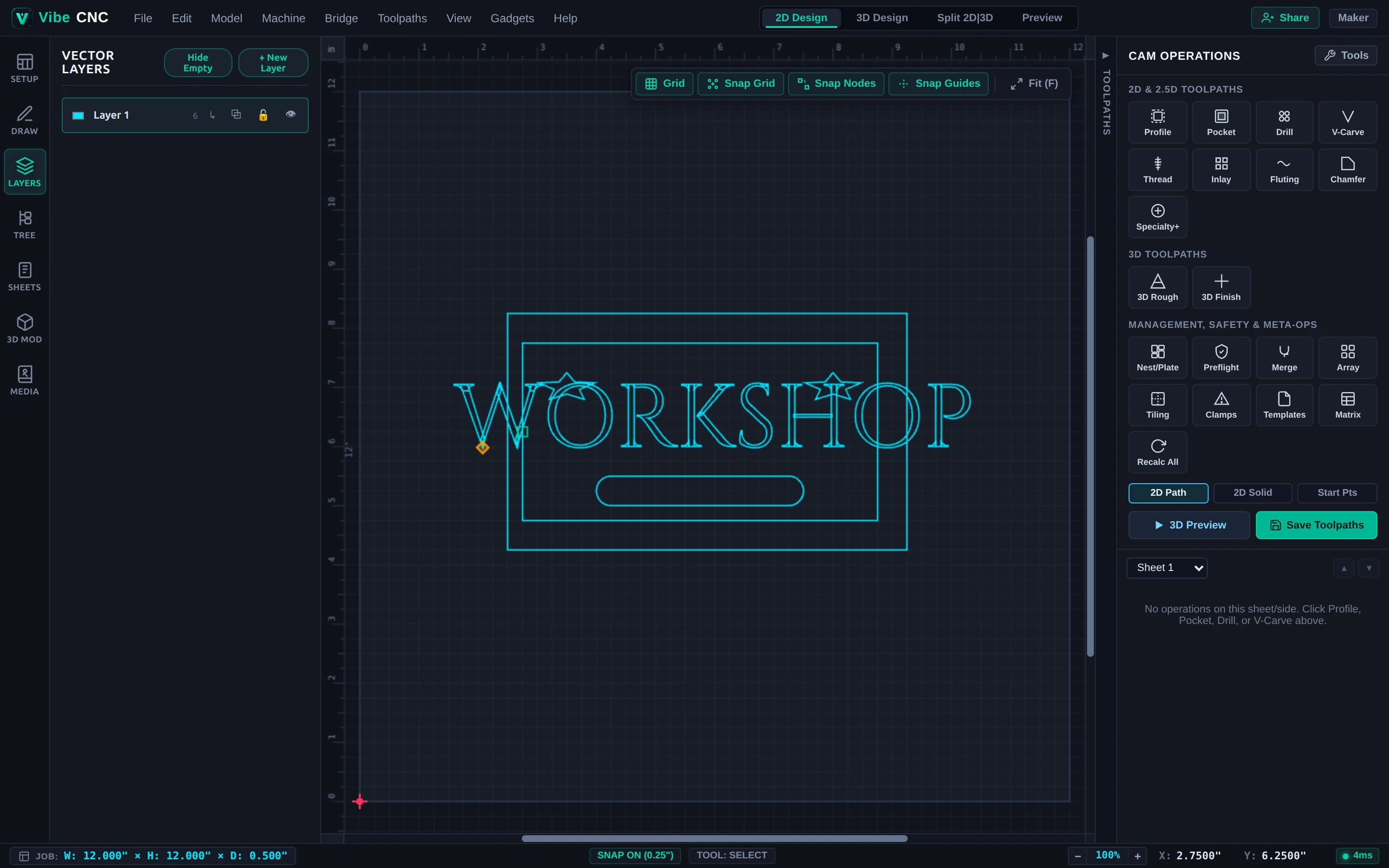
- Active Layer: Newly drawn shapes land on the currently active layer.
- Visibility (Eye Icon): Temporarily hide reference sketches or finished parts while working on fine details.
- Lock Icon: Prevent accidental clicks or drags on a finished outer border while editing interior artwork.
- Automatic Toolpath Association: When you associate a toolpath with a layer via the Vector Selector, clicking Recalc All automatically picks up any new vectors you add to that layer later.
Managing Multiple Sheets
Open the Sheets tab when cutting parts from more than one board or sheet of plywood. Every sheet can have its own independent width, height, thickness, and material appearance.
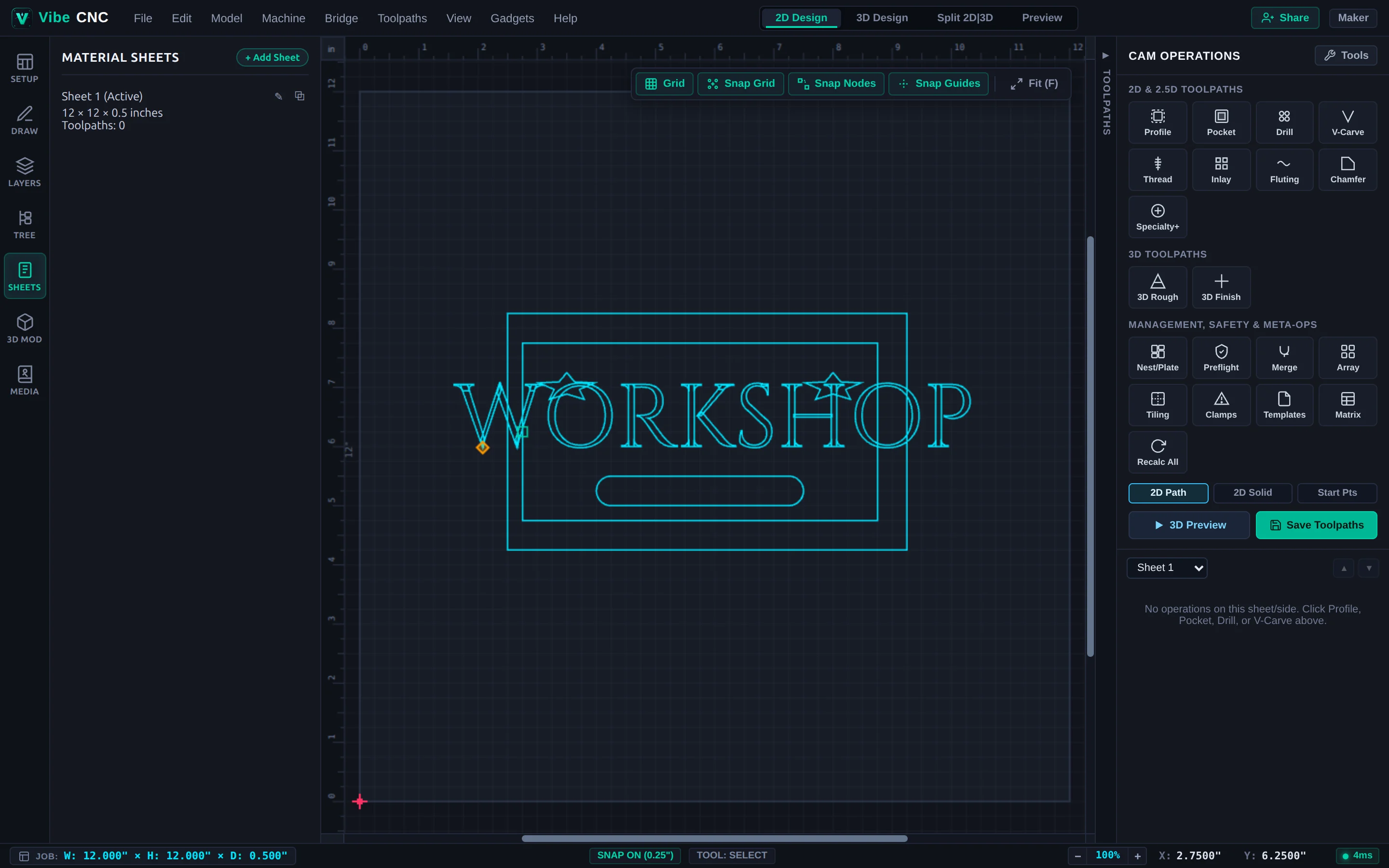
You can duplicate a sheet along with all of its vectors, switch between sheets with one click, and filter the Right Drawer Toolpath Tree by sheet. When you are ready to run production, open the Matrix tool in the Right Drawer to recalculate and batch-export G-code across every sheet at once.