
2D CAD Design
Selecting, Transforming & Aligning
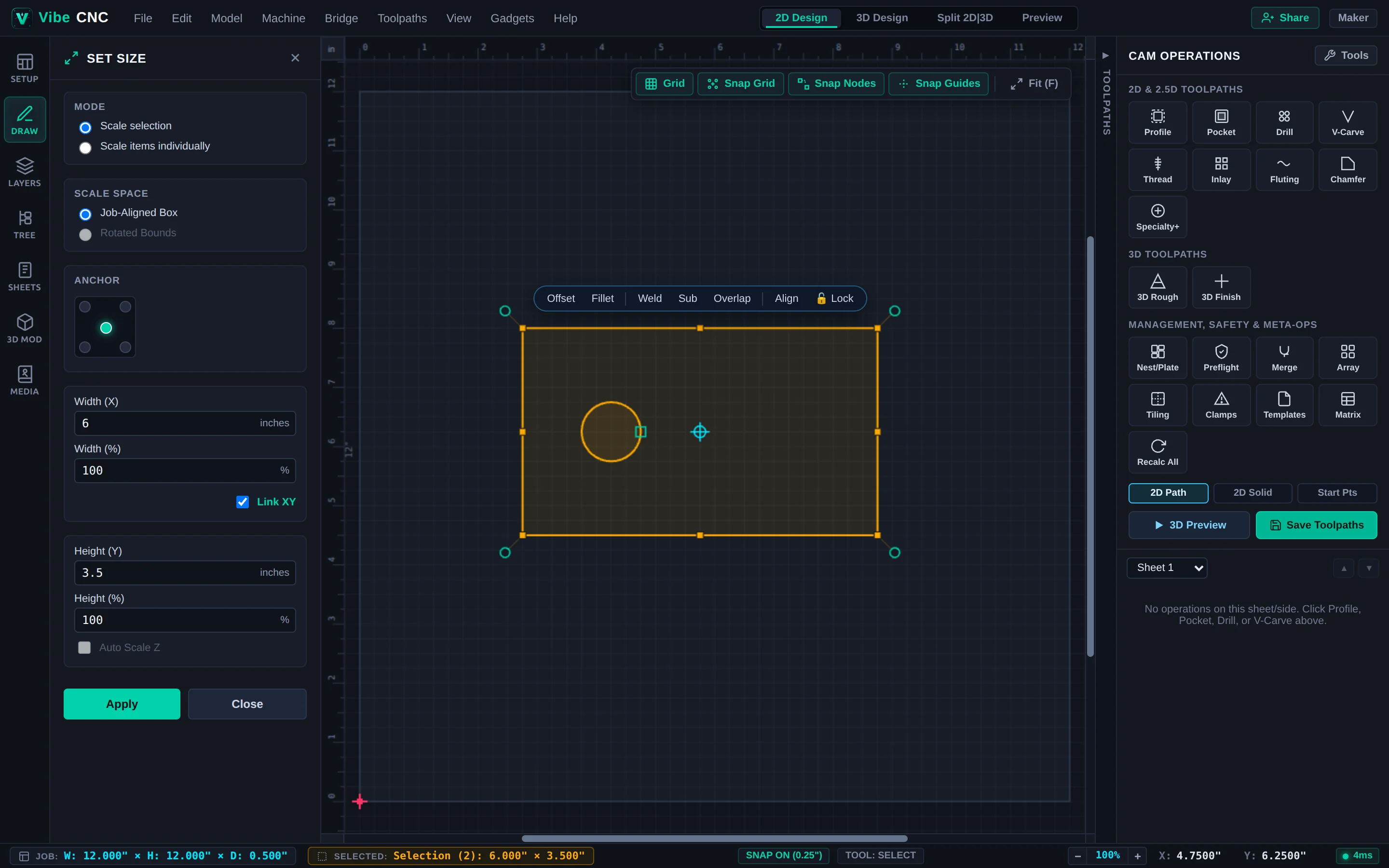
Resize, rotate, mirror, align, group, isolate, and lock vectors using on-canvas grips, Set Size (T), the Dimension HUD, and the Selection Action Pill.
VibeCNC combines direct on-canvas manipulation with exact numeric panels so you can lay out parts quickly without hunting through nested menus.
Selection Techniques
- Click: Selects one vector. Hold Shift while clicking to add or remove shapes.
- Left-to-Right Marquee Box: Selects only objects completely enclosed inside the drag box.
- Right-to-Left Crossing Box: Selects any object touched or crossed by the drag box.
- Smart Part Selection: Click an outer part perimeter and run Smart Part Selection to grab all interior holes, slots, and pockets inside that boundary at once.
On-Canvas Grips, Dimension HUD & Action Pill
- Resize & Rotate Grips: Drag corner squares to scale proportionally or edge handles to stretch one axis. Drag outer circular handles to rotate; hold Alt to snap cleanly to 45-degree increments (0, 45, 90, 135, 180, 225, 270, 315). Drag the center pivot crosshair to rotate around a custom hinge point.
- Live Dimension HUD: Displays live width, height, radius, or angle beside your selection. Press Tab to focus the readout, type a value or formula (like
8.25orW/2), and press Enter. - Selection Action Pill: Floating pill above active selections giving instant one-click access to Offset, Fillet, Weld / Subtract / Overlap, Align, Isolate, and Lock.
Precision Transform & Alignment Panels
| Tool | Shortcut | What It Does |
|---|---|---|
| Set Size | T | Scales to exact X/Y dimensions from any 9-point anchor, with optional Link XY ratio lock. |
| Move Selection | Left Drawer | Moves by exact Absolute coordinates or Relative X/Y delta offsets. |
| Center in Material | F9 | Centers selected objects horizontally and vertically on the current sheet. |
| Rotate | Left Drawer | Rotates by an exact degree value around the selection center or a custom X/Y pivot. |
| Mirror | H / V | Flips horizontally, vertically, about job center, or creates a mirrored copy. |
| Align & Distribute | Left Drawer | Aligns edges/centers to material or last selected vector, and spaces multiple parts evenly. |
Groups, Group Isolation & Locking
Press G to group related vectors and U to ungroup. Double-click any group to enter Group Isolation Mode, tweak an inner shape without breaking the group, and press Esc (or click outside) to exit. Use Lock on finished borders or reference lines so they cannot be nudged accidentally.